
Configure Direct Routing for TeamsFire Connector
Overview
🔎 Scope
- Outlines the process for configuring direct routing for TeamsFire Connector.
- This is a prerequisite to configure TeamsFire
✔️ Requirements
- Microsoft Global Admin Access
- Have received the TeamsFire Registration email.
- Delete any Previous Direct Routing
- Verify All Users Have Supported Microsoft Licenses
- At least 1 available AND unassigned User license with the required Add-On (Phone System) that allows you to use Direct Routing. Once this step is complete, the license may be removed or assigned.
🔗 Links
- Teams Admin Center - https://admin.teams.microsoft.com
Teams Configuration
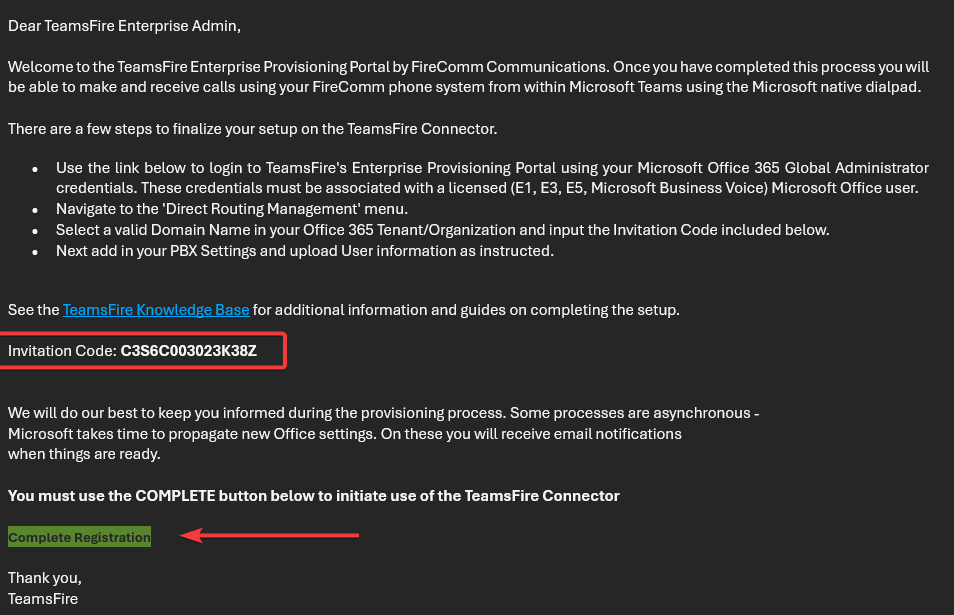
- The Global Administrator will receive an email from TeamsFire with an invitation code and a link to complete registration.
- Email Sender - TeamsFire
- Email Sender Address - notify@FireComm.tel
- Email Subject - TeamsFire Registration for Microsoft Teams - Phone System Connector
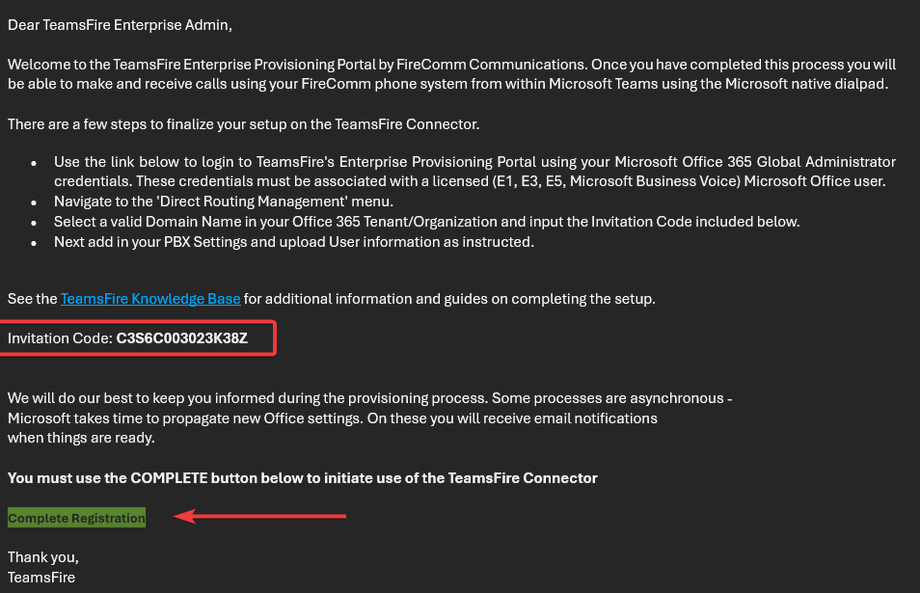
- Copy the "Invitation Code" and click "Complete Registration"
- Login to the portal with Gobal Admin Credentials
- Accept any permission requests the appear
- Accept for the organization if prompted
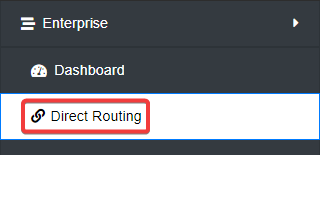
- Navigate to Enterprise --> Direct Routing
- Click "Setup Direct Routing Details"

- Paste the Invitation Code from the email and choose a Microsoft Domain and let TeamsFire confirm it is set up to support Direct Routing.
- Click "Complete Direct Routing"