

Single Sign-On
Overview
🔎 Scope
How to configure and login via SSO for your user account
- NOTE: Logging in via SSO bypasses any MFA (Multi-Factor Authentication) configured on the account.
✔️ Requirements
- Access to Manager Portal
🔗 Links
- Manager Portal - https://pbx.FireComm.tel
SSO Setup / Configuration
- Log in to the Manager Portal
- Click your name in the top right corner
- Select "Profile"
NOTE: Office Managers must select "My Account" then "Profile"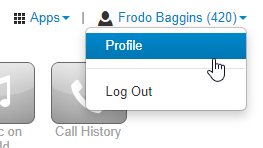
- Select "Profile"
- Scroll to "Account Security"
- Select the SSO Provider you want to enable
NOTE: You can enable multiple SSO Providers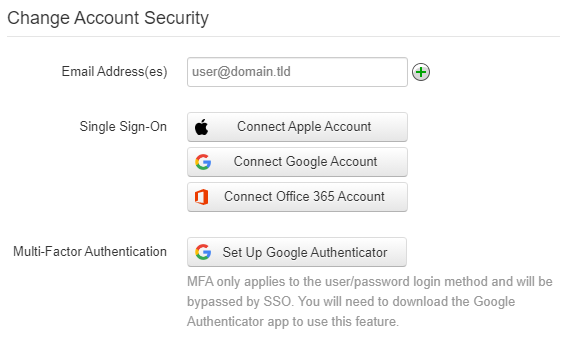
- Select the SSO Provider you want to enable
- When prompted, enter your login credentials
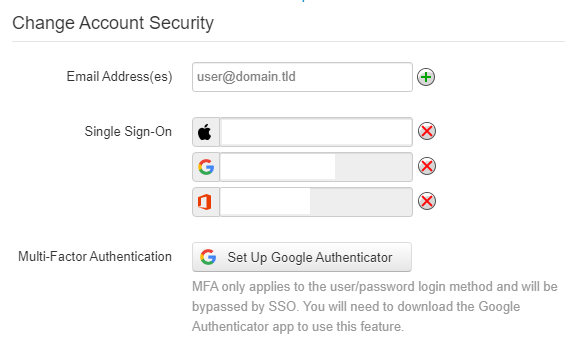
- Once you have logged in, the SSO field will update to reflect the email address of your account
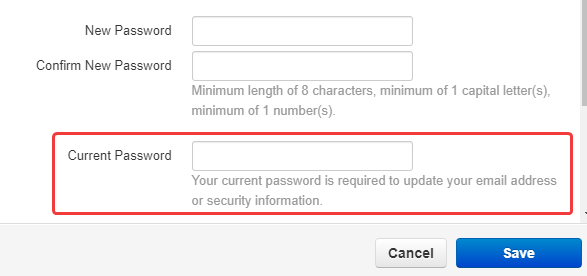
- You will need to enter your CURRENT MANAGER PORTAL PASSWORD to Save the SSO Setup
Sign-In Via SSO
You can sign in via SSO on the Manager Portal or the SNAPmobile app.
- At the login screen, click the SSO Provider you have configured and sign in via your SSO Provider credentials.
- You DO NOT need to enter any login information into the login boxes on the Manager Portal or SNAPmobile app if using SSO
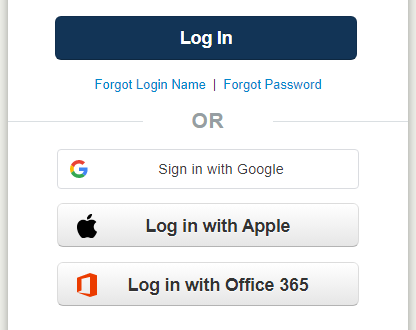
- You DO NOT need to enter any login information into the login boxes on the Manager Portal or SNAPmobile app if using SSO
