
Camera Mobile Apps
Overview
📜 SCOPE
How to install and use the mobile apps for the different FireComm NVR series.
How to install and use the mobile apps for the different FireComm NVR series.
✔️ REQUIREMENTS
- Access to Google Play Store or Apple App Store
- User account on the NVR
🔗 LINKS
- FireComm U Series - Guard Viewer
- FireComm R Series - RXCamView
FireComm U Series - Guard Viewer (Most Common)
Guard Viewer works on a global managed account basis. You will need to create an account on the Guard Viewer app and have an assigned access level on the NVR you are trying to connect to. If you do not have access to the NVR you are trying to connect to, contact FireComm Support to get access.
Account Setup / Login
- Install the Guard Viewer app and launched it
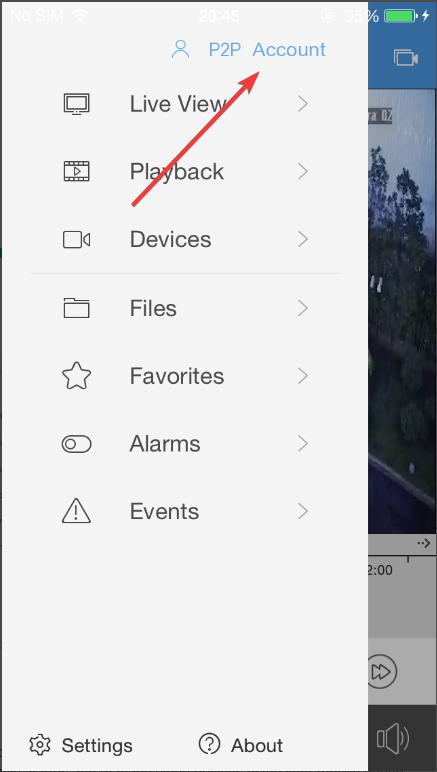
- Click the hamburger menu in the top left and click "Account"
- Login with your email and password - this account is setup by the user and FireComm has no access to it.
- If you do not have an account or have forgotten your password click the links at the bottom
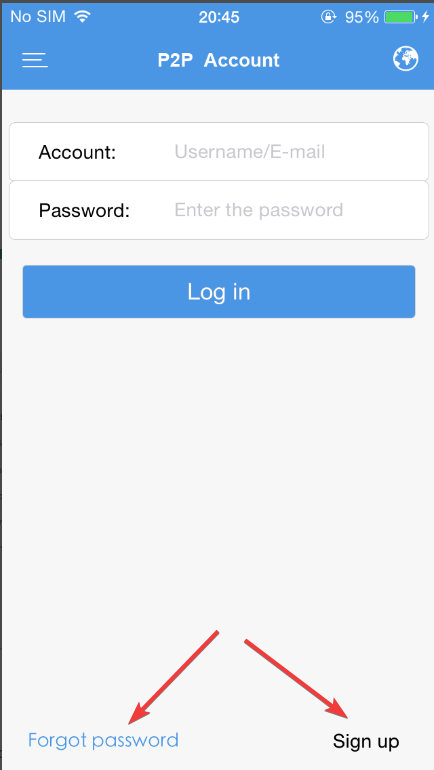
- If you are creating an account - after entering your email address, you will receive a code in your email (check junk if you don't see it), you will need to enter that code in the Guard Viewer app to complete the account sign-up
- If you do not have an account or have forgotten your password click the links at the bottom
Connect / View NVR
- After you have logged into Guard Viewer - click the hamburger menu again and click "Devices"
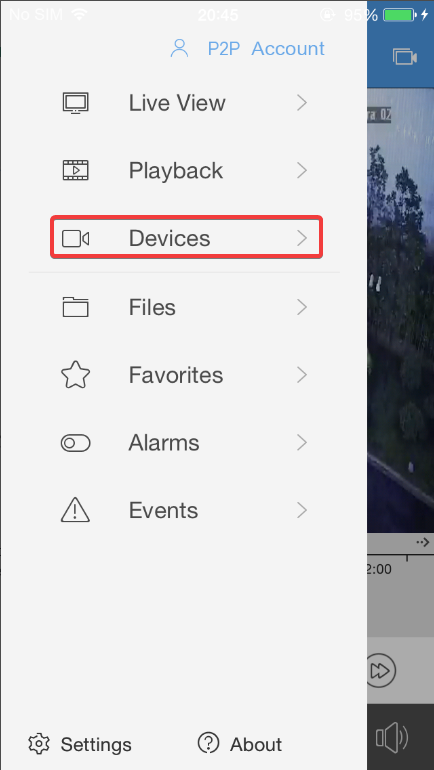
- Click the device / NVR you want to connect to
- If there are no devices listed contact FireComm Support to have the device added to your account.
- Click "Start Live View"
- Audio - To listen to the mic on cameras with audio - have the app in single camera view (double click a camera view) then click the speaker in the bottom left corner of the image.
Playback
- Open the camera you want to play the recording from (double click the camera view)
- Click the "Playback" button
- Move the slider at the bottom to the time frame you want to watch the playback of
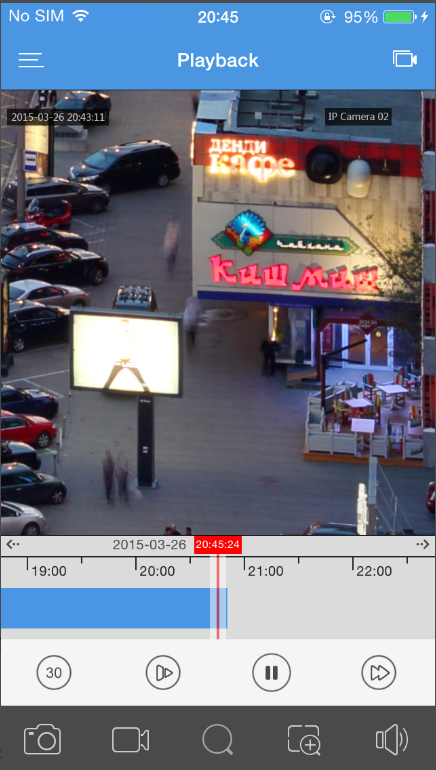
FireComm R Series - RXCamView
RXCamView stores NVR login information in the app itself on the device it's installed on. If you need to view devices / NVR on more than one mobile device you will need to repeat the steps on each mobile device.
Add NVR / Device to RXCamView
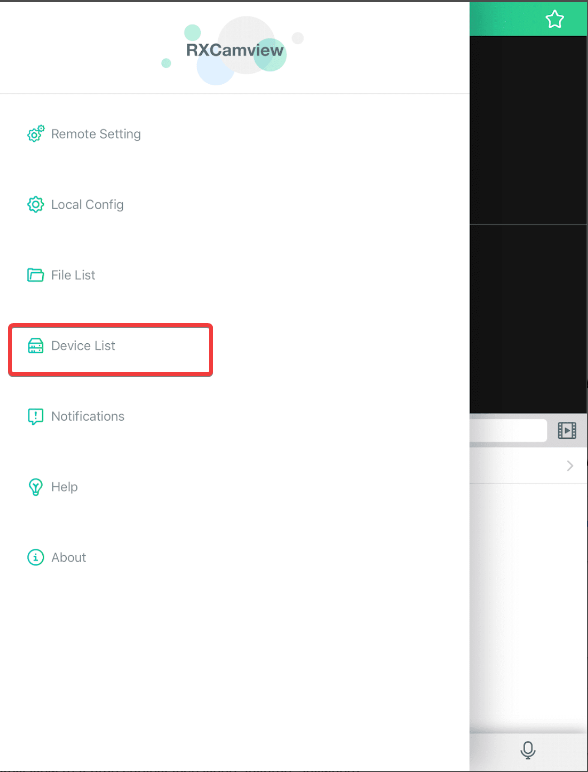
- Open the RXCamView app and click the menu in the top left
- Click "Device List"
- Click the "+" sign in the top right
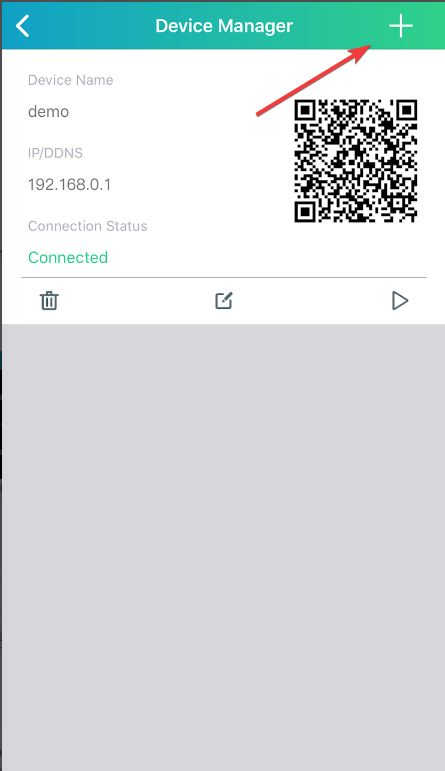
- If you have the QR Code for the device - Click "QR Code"
- After scanning QR Code - fill in the remainder of the required information on the form and click save
- If you do not have the QR Code - Click "Manual"
- Completely fill out the form with the required information and click save
- If you do not have the required information - Contact FireComm Support
- If you have the QR Code for the device - Click "QR Code"
Connect / View NVR
- Click "Device List" in the menu
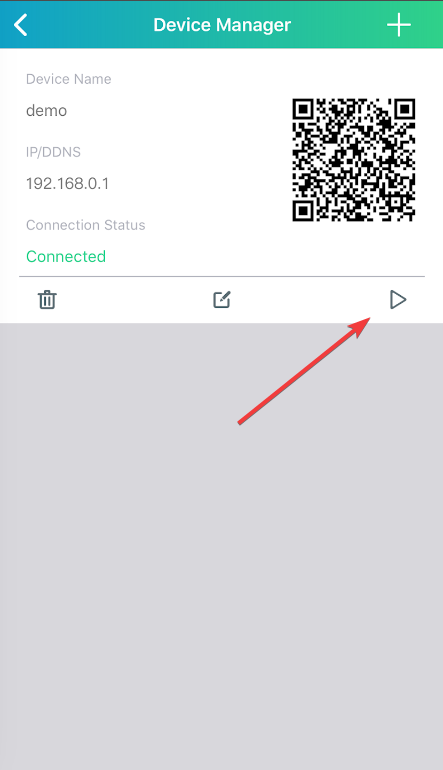
- Click the Play icon under the device you want to connect to / view