
SNAPmobile
Overview
🔎 Scope
SNAPmobile is a mobile application that will allow you to use your service anytime, anywhere, from your mobile device. The following guide will go over setup and usage.
✔️ Requirements
- Mobile Device (iOS or Android - OS v9 or greater)
- Access to Manager Portal
🔗 Links
- Manager Portal - https://pbx.FireComm.tel
- SNAPmobile Download Links
SNAPmobile Setup
- At the login screen enter the following information
- Host ID - UCNET
- Username - extension@domain (same as your login to the Manager Portal)
- Password - Your password for the Manager Portal
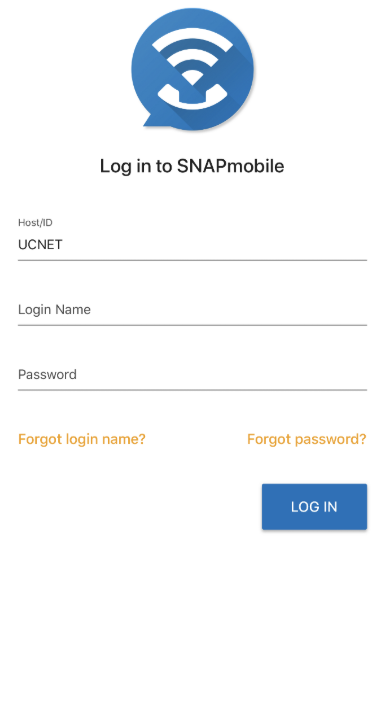
- Press "LOG IN"
Make a Call
Via Contact Page
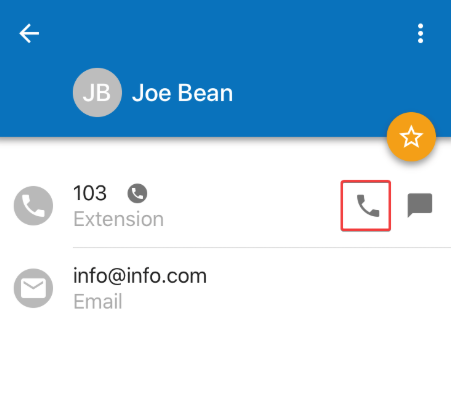
- Select the contact you want to call
- Press the phone icon to the right of the contact
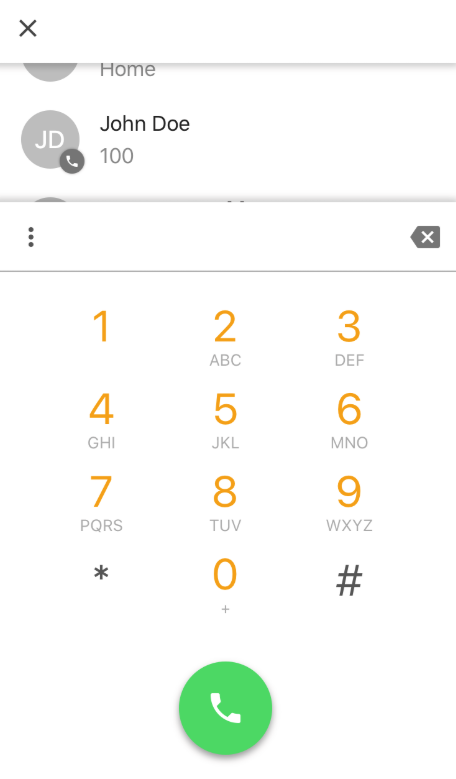
Via the Dialpad
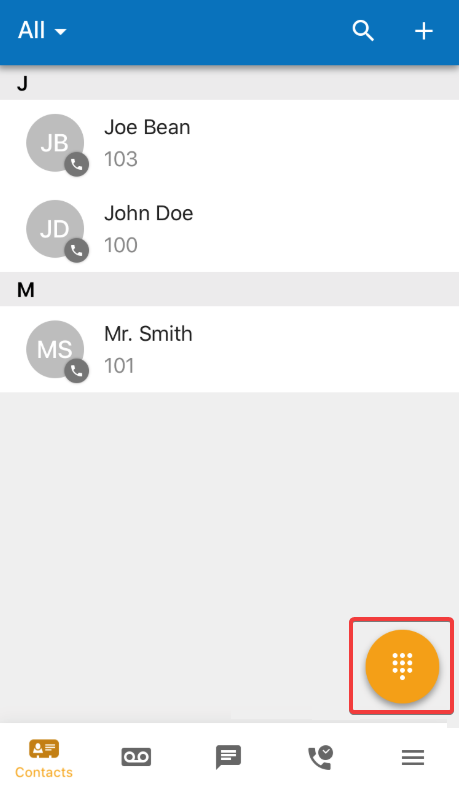
- Press on the yellow dial pad icon in the lower right corner
- Dial the number or extension you wish to reach
- Press the phone icon at the bottom to start the call
Transfer a Call
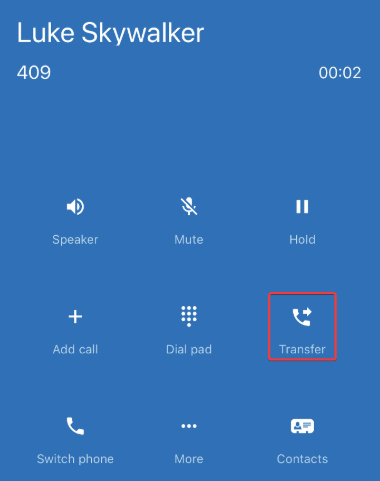
- Press "Transfer" from an active call
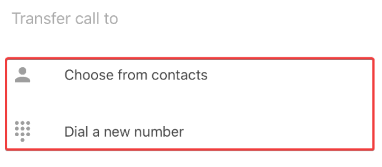
- Select whether to transfer to a contact or dial a number
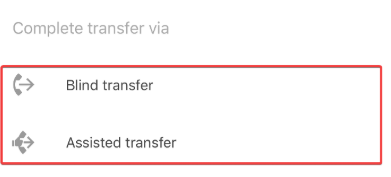
- Dial or select the contact then choose whether to use a blind or assisted transfer
Conference Calling
- Press "Add call" from an active call
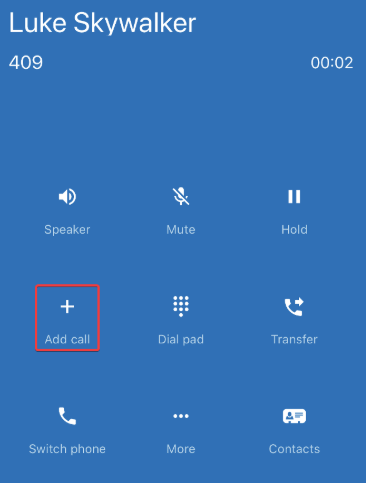
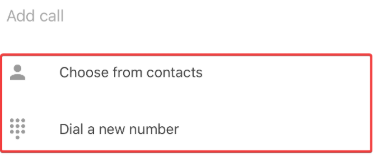
- Select whether to add a contact to the call or dial a number
Record a Call
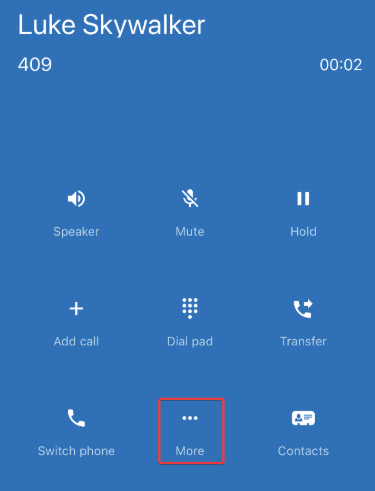
- Press "More" button on an active call
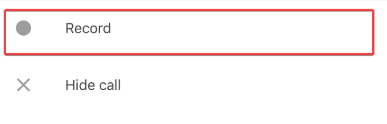
- Press "Record"
Chat & SMS
Chat between users is enabled by default. However, SMS (Text Messaging) must be enabled by Support.
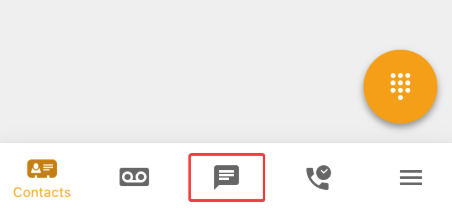
- Select the Messaging tab
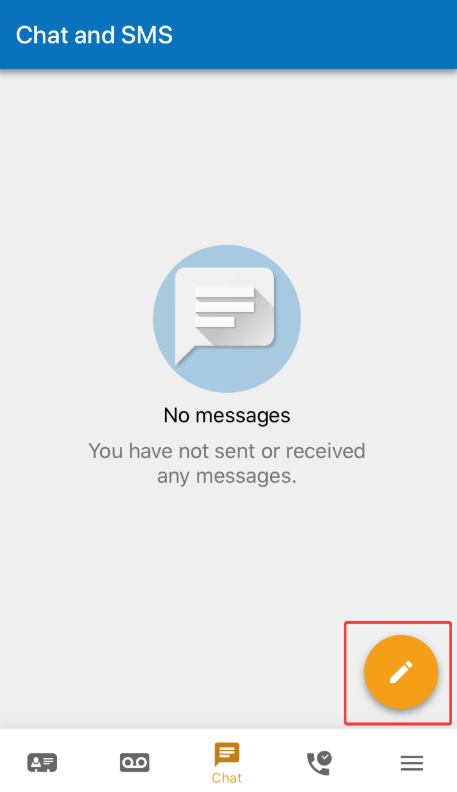
- Click the Chat / SMS you want to open or click the yellow pencil icon in the lower right corner to create a new Chat / SMS
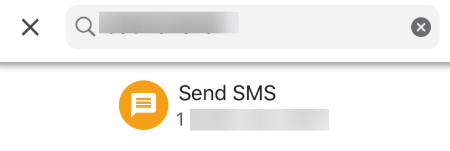
- Type in the phone number or contact you would like to message and press "Send"
- Active chats will then appear on this tab. You can select them to send messages in the same thread
Check Your Voicemail
- Tap the "Voicemail" icon
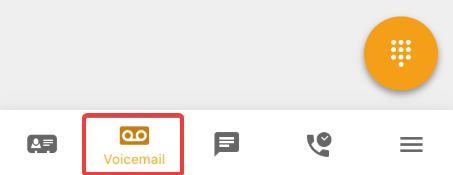
- Voicemails will be listed on the screen
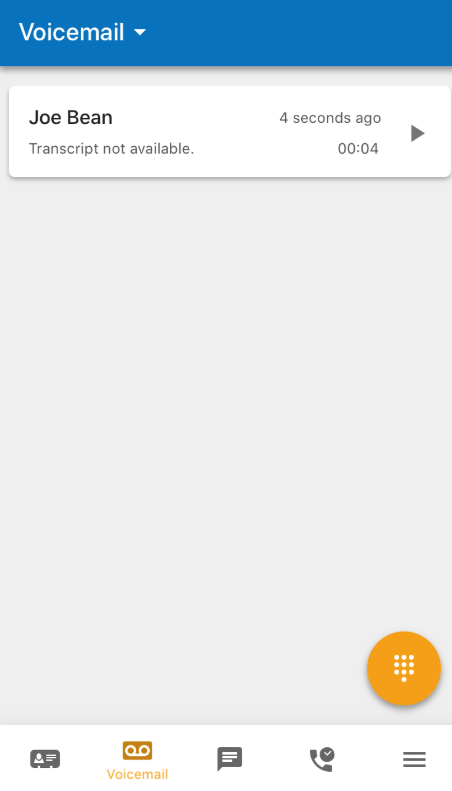
- You can sort through them by new, saved, and trash. To change the sorting, click the drop-down arrow next to "Voicemail" in the top right and select what you would like to sort by
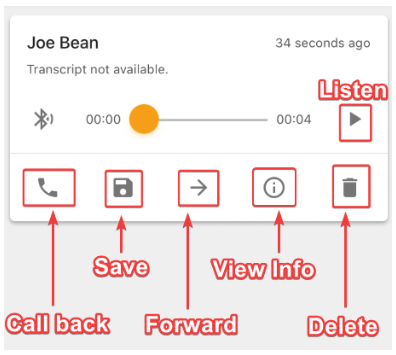
- Tap on the voicemail to see the following options
- Listen to the voicemail
- Call back the caller
- Save the voicemail
- Forward to voicemail to another extension
- View the voicemail and caller information
- Delete the voicemail